> ## Documentation Index
> Fetch the complete documentation index at: https://docs.fourseasonshosting.com/llms.txt
> Use this file to discover all available pages before exploring further.
# Creating Your VPS
Here we will set up your new VPS together! On the new panel and go through some of the basics of the panel while setting up
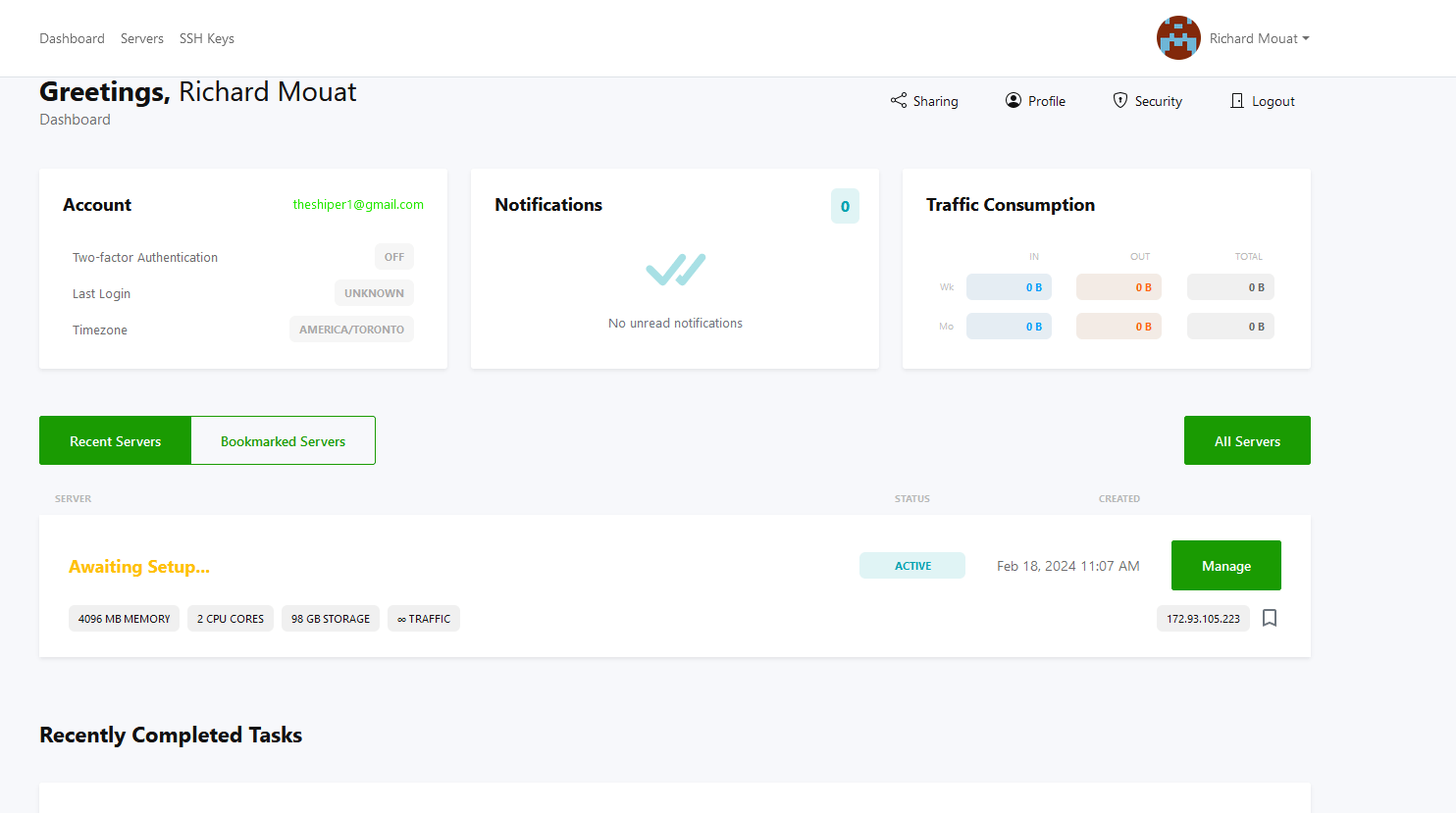 When Logging In to the VPS Dash it will look something like this.
1. Now we can see our server is "Awaiting Setup..." so let's click that big "Manage" button to start the set up of the VPS
2. In this GIF you can see that we named our server and set the hostname to "myserver.fsh"
When Logging In to the VPS Dash it will look something like this.
1. Now we can see our server is "Awaiting Setup..." so let's click that big "Manage" button to start the set up of the VPS
2. In this GIF you can see that we named our server and set the hostname to "myserver.fsh"
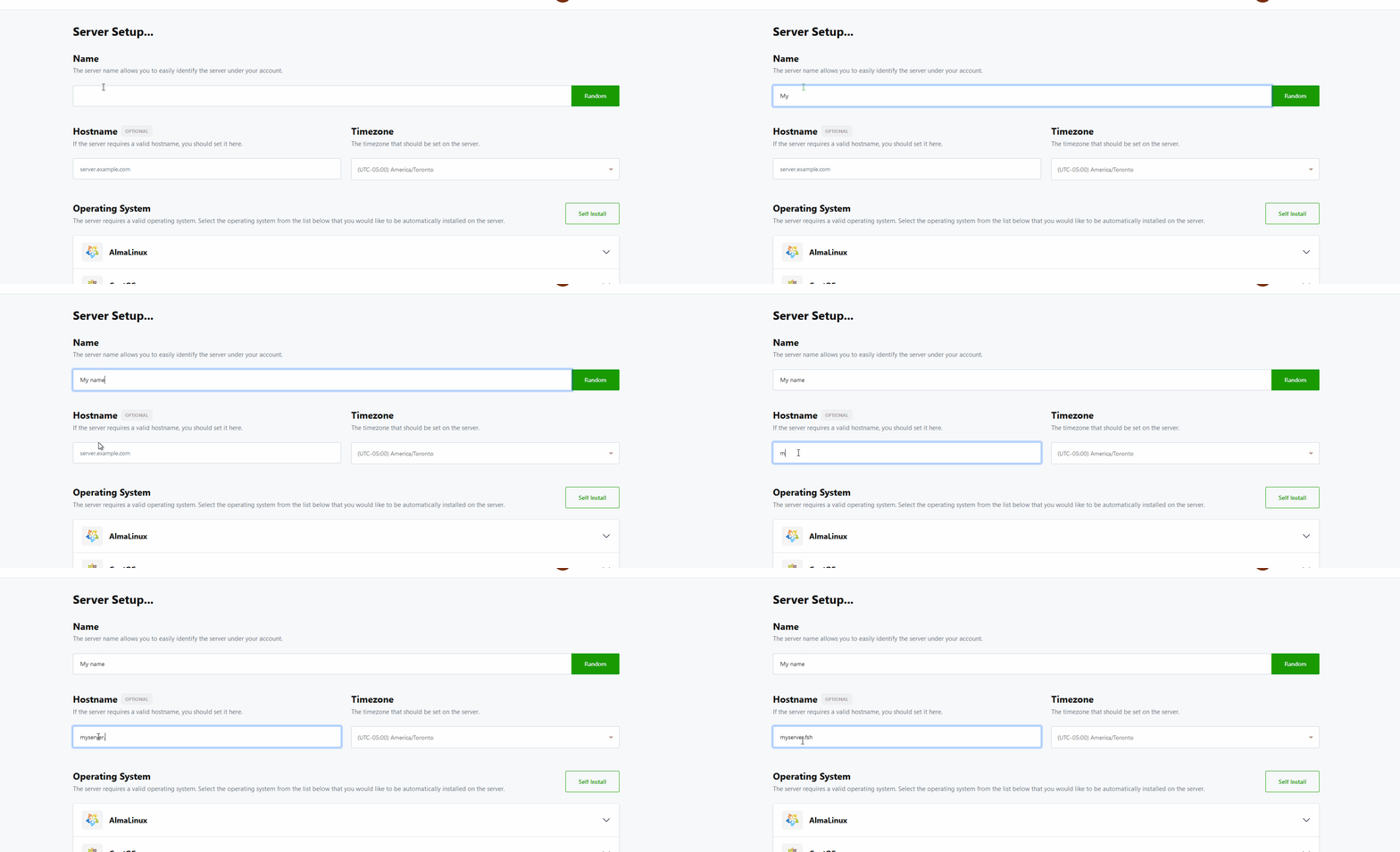 Name and Host Name of your server
3. Now we can install our Operating System (OS).
We recommend with any Linux install you use a SSH Key! it's not required but it's good practice for security of your server
4. Click on the Group of the OS you would like to use.. For this demo we will use Windows Server 2019.
Clicking on Advanced Options allows you to change your DNS (auto set to Google DNS) and Enable/Disable VNC, this can also be done afterwords on the Dashboard
5. Now let install the OS
Name and Host Name of your server
3. Now we can install our Operating System (OS).
We recommend with any Linux install you use a SSH Key! it's not required but it's good practice for security of your server
4. Click on the Group of the OS you would like to use.. For this demo we will use Windows Server 2019.
Clicking on Advanced Options allows you to change your DNS (auto set to Google DNS) and Enable/Disable VNC, this can also be done afterwords on the Dashboard
5. Now let install the OS
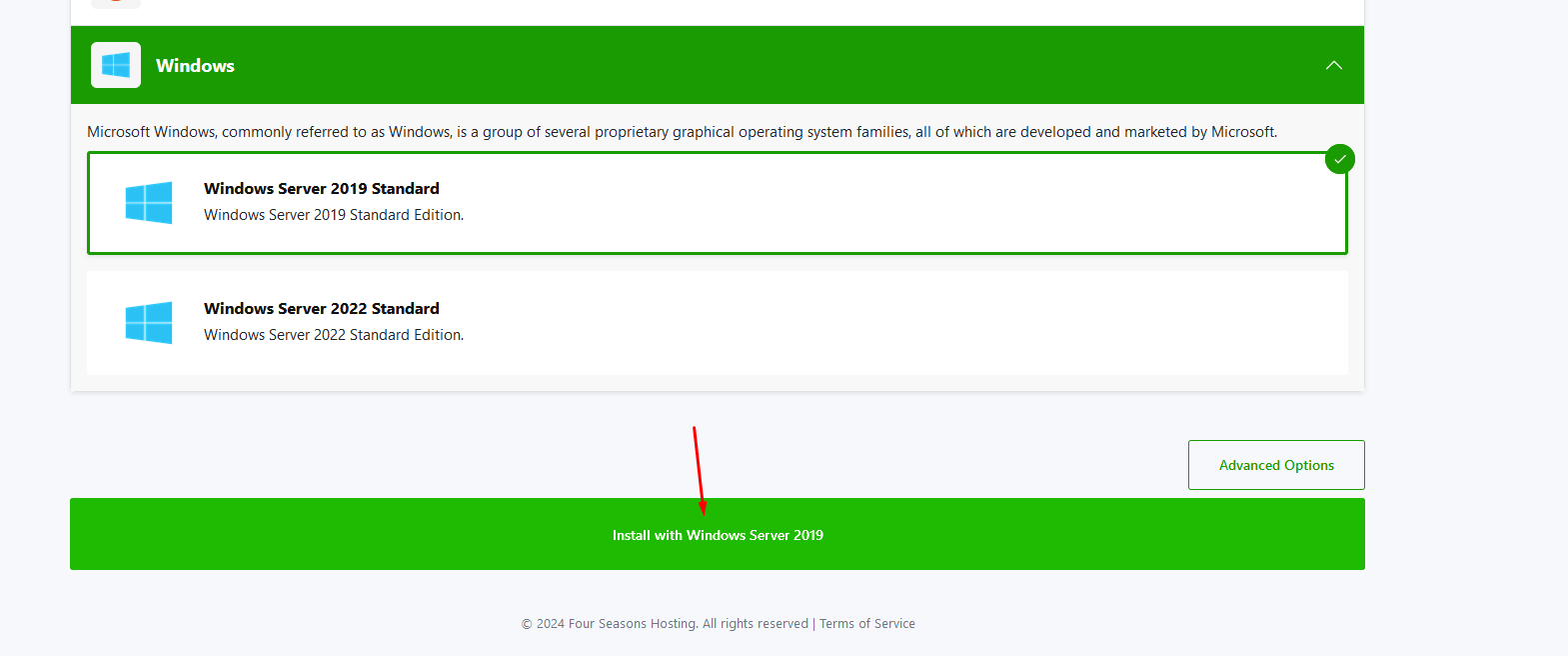 Installing Windows Server 2019
Some OS like Windows could take some time installing you may see a popup warning you of this, you can click "Install Now" and continue the install
Installing Windows Server 2019
Some OS like Windows could take some time installing you may see a popup warning you of this, you can click "Install Now" and continue the install
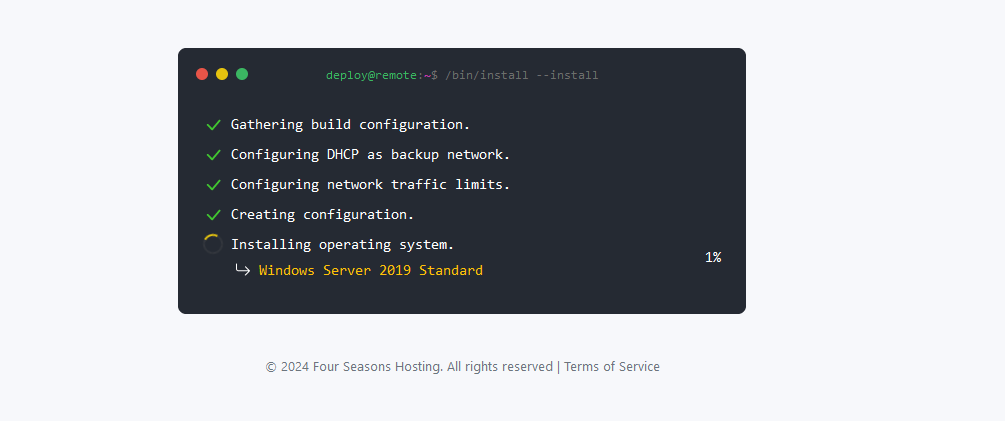
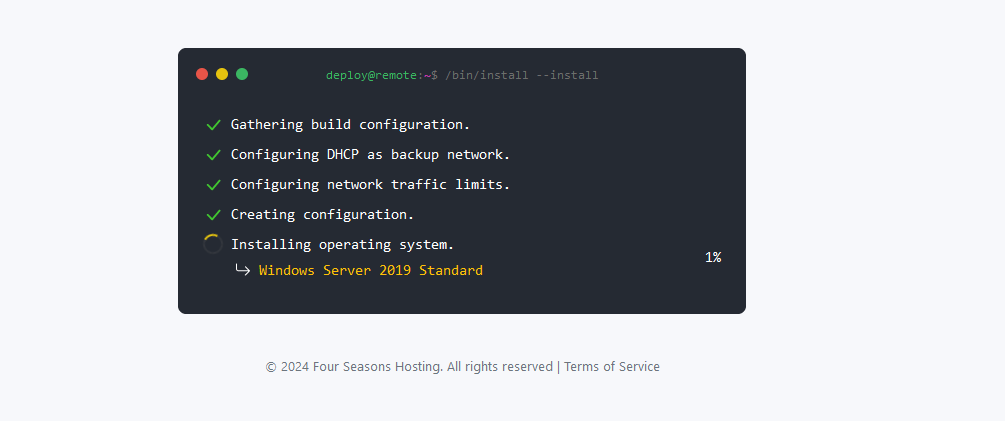 Installing Your OS
If deploy-er comes back with a failed task please open a ticket on our Discord or in the Client Portal
Once the installation is completed, you will be redirected to the Dash of that VPS server and the VPS login will be emailed to you (check junk folder)
Great Job the OS is installed now
Installing Your OS
If deploy-er comes back with a failed task please open a ticket on our Discord or in the Client Portal
Once the installation is completed, you will be redirected to the Dash of that VPS server and the VPS login will be emailed to you (check junk folder)
Great Job the OS is installed now